Skip to footer


TOEFL® EssentialsTM

A friendly and convenient English-language test with the quality that universities respect

장비 및 환경 요구 사항

TOEFL Essentials 시험에 등록 할 계획이라면, 등록 전에 이 요건들을 충족하는지 확인하고 확인하여 더 원활한 시험 당일 경험을 하세요. 시험 당일에 이 조건을 충족하지 못하면 시험에 응시할 수 없습니다. 그럴 경우 환불이나 무료 재예약을 받지 못합니다.

아래 링크 중 하나를 선택하여 ETS 보안 브라우저를 다운로드하세요.

그 다음 파일을 실행해 설치를 완료하세요. 브라우저에서 장비 점검 버튼을 클릭하여 장비가 테스트 당일에 준비되었는지 확인하세요.

아래 스크린샷을 확인하시면 ETS 보안 브라우저를 실행할 때 무엇을 기대할 수 있는지 확인해 보세요.
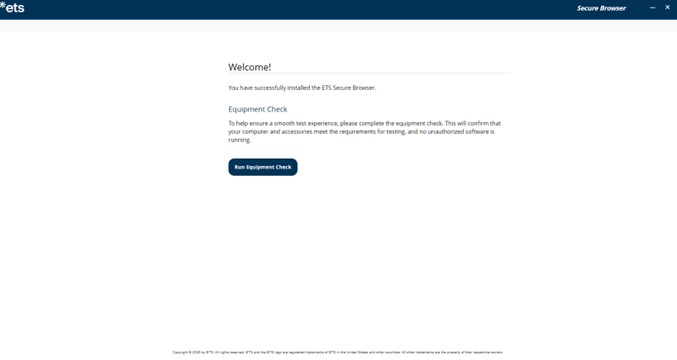
 

Screenshot of a website welcome page showing confirmation that the ETS Secure Browser has been successfully installed. Includes a prominent call-to-action button inviting users to run an Equipment Check for optimal performance.

ETS 보안 브라우저를 열면 환영 화면으로 이동합니다. 여기서 장비 점검을 진행할 수 있습니다.
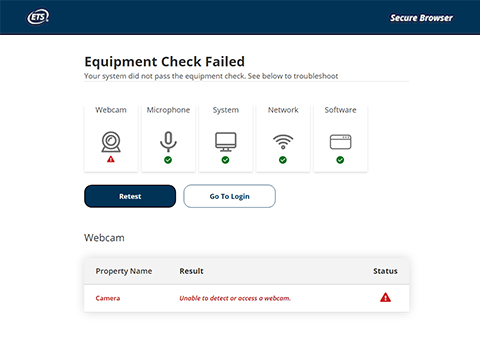
 

Screenshot showing the results of the Equipment Check when some part of the equipment has failed. One or more icons representing a webcam, microphone, system, network, and software will include a red triangle. Tips for troubleshooting the problem can be found below

장비 점검을 완료하면 장비의 상태를 확인할 수 있습니다. 부품이 고장 나면 빨간 삼각형 상태 표시기가 뜨고 문제 해결 팁도 확인할 수 있습니다.

장비 점검에는 대역폭 점검이 포함되어 있습니다. 대역폭은 시간대와 네트워크 사용량에 따라 다르기 때문에, 장비 점검을 여러 시간에 걸쳐 실행해 어느 시간이 가장 좋은지 확인하세요. 또한, 검사와 같은 요일, 같은 시간에 검사를 진행해야 합니다. 이렇게 하면 시험 시 경험하는 것과 비슷한 환경에서 대역폭을 확인하는 셈입니다. At Home Test Day 페이지에서 유용한 기술 팁 영상 을 시청하세요.
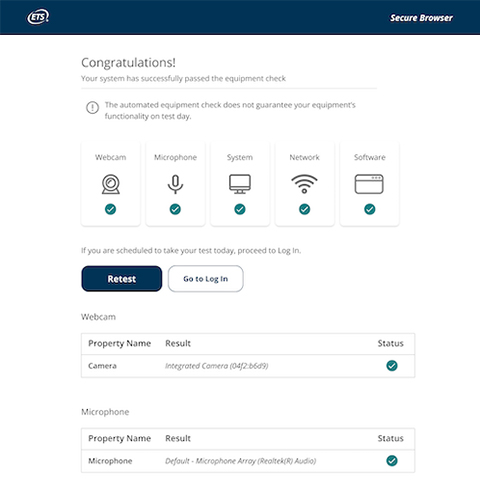
 

Screenshot showing the results of the Equipment Check when all equipment has passed the requirements check. Icons representing a webcam, microphone, system, network, and software all include a green checkmark

장비 검사를 성공적으로 통과하면 축하 페이지에 도착하게 됩니다.

점검이 실패하고 직접 문제를 해결할 수 없다면, 장비 점검 지원을 방문해 문제 해결 팁을 얻으시기 바랍니다.

시험 당일 전에 실시간 헬프 데스크 기술자가 도움을 드릴 준비가 되어 있습니다.

장비 요구 사항

  • Desktop or laptop computer. You can't use a tablet or mobile device.
  • Only one monitor or screen. Multiple monitors or dual screens are not permitted.
  • Only one keyboard. Multiple keyboards are not permitted.
  • Approved operating system, which must be licensed. Unlicensed or test-mode versions are not permitted.
    • PC: Windows operating system, version 11 or higher
    • MAC: Mac OS X® 10.13 or higher

  • Use an internal or external speaker to take your test and hear the proctor.
  • Headsets or earphones aren't allowed.

  • Use an internal or external microphone that isn't part of a headset to take your test and communicate with the proctor.
  • Headsets and earphones aren’t allowed.

  • A separate webcam, or a camera that is built into the computer or monitor screen, is allowed.
  • You’ll need to be able to move the camera to show the proctor a 360-degree view of the room. This includes showing your tabletop surface and the area below it.

  • A fully charged smartphone or tablet with a working camera that runs on iOS 12 or later or Android 8 or later 
  • A stable internet connection
  • A sturdy, heavy object to support your phone

  • Other devices taking up bandwidth can cause issues during your test. Be aware of other devices that are using significant internet bandwidth when you conduct your equipment check and on test day.
  • Close all browsers and applications that you don’t need for the test. This can help prevent bandwidth issues while you test.
  • Disable any screen-sharing or remote-access software before the test. You’ll need to keep this software disabled throughout the test and set it so that the software won’t open automatically during the test.

환경 및 시험 공간 요구사항

  • You’ll need to be alone in a room. No one may enter the room during the test.
  • You can't take the test in a public space such as a park, internet cafe or restaurant.
  • You’ll need to close all the doors in the room before beginning the test.
  • All transparent walls, doors or large open windows must be covered.
  • Walls must be clear of any material related to the test.

  • Your computer and keyboard need to be on a desk or other tabletop surface and remain connected to a power supply throughout testing.
  • Position your table and chair so the door to the room will be visible to the proctor. The proctor may require you to do this at check in.
  • The tabletop and surrounding area must be clear of all items not approved for use during the test. This includes cameras, notes, study materials, and cell phones. 
    • If you use your cell phone for check-in, place it behind you and out of reach after check-in, unless it's being used as a second camera for monitoring during the test.
  • You’ll need to sit in a standard chair. You can't sit or lie on a bed, couch or overstuffed chair.
  • Food and drink aren't allowed during the test.

  • Your ears and face need to remain visible throughout the test, not covered by a hat, hair or other items. Religious headwear is permitted if your ears remain visible during the test. Face masks may not be worn during check-in or any part of the at home testing session.
  • Dress appropriately for your test. You'll be monitored via camera by the proctor, and your photo will be shared with institutions that receive your scores.
  • You’ll need to remove all headphones, smartwatches, face masks, jewelry, tie clips, cuff links, ornate clips, combs, barrettes, headbands and other hair accessories before checking in for your exam. You do not need to remove wedding and engagement rings.

  • For security purposes, you may not take notes on paper.
  • You may use one of the following to take notes:
    • one small desktop whiteboard with erasable marker, no pencil or pen
    • one sheet of paper inside a transparent sheet protector, with erasable marker
  • At the end of the test, you'll need to show the proctor that all notes have been erased.